Brief overview
VidPly is a universal, accessible media player that supports multiple sources:
| media type | Source | Privacy level | Best suited for |
|---|---|---|---|
| HTML5 video | Upload MP4/WebM | No | Local videos |
| HTML5 audio | Upload MP3/OGG | No | Podcasts, music |
| YouTube | Video URL | Yes (GDPR) | External videos |
| Vimeo | Video URL | Yes (GDPR) | External videos |
| SoundCloud | Track/set URL | Yes (GDPR) | Music, podcasts |
| HLS | .m3u8 URL | No | Live streaming |
Two-step workflow
Step 1.1: Create media
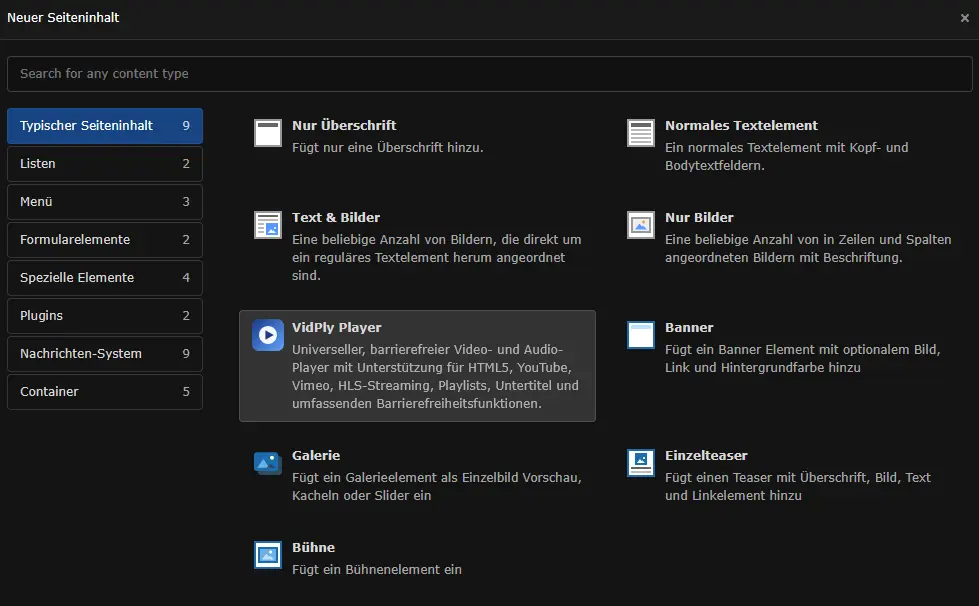
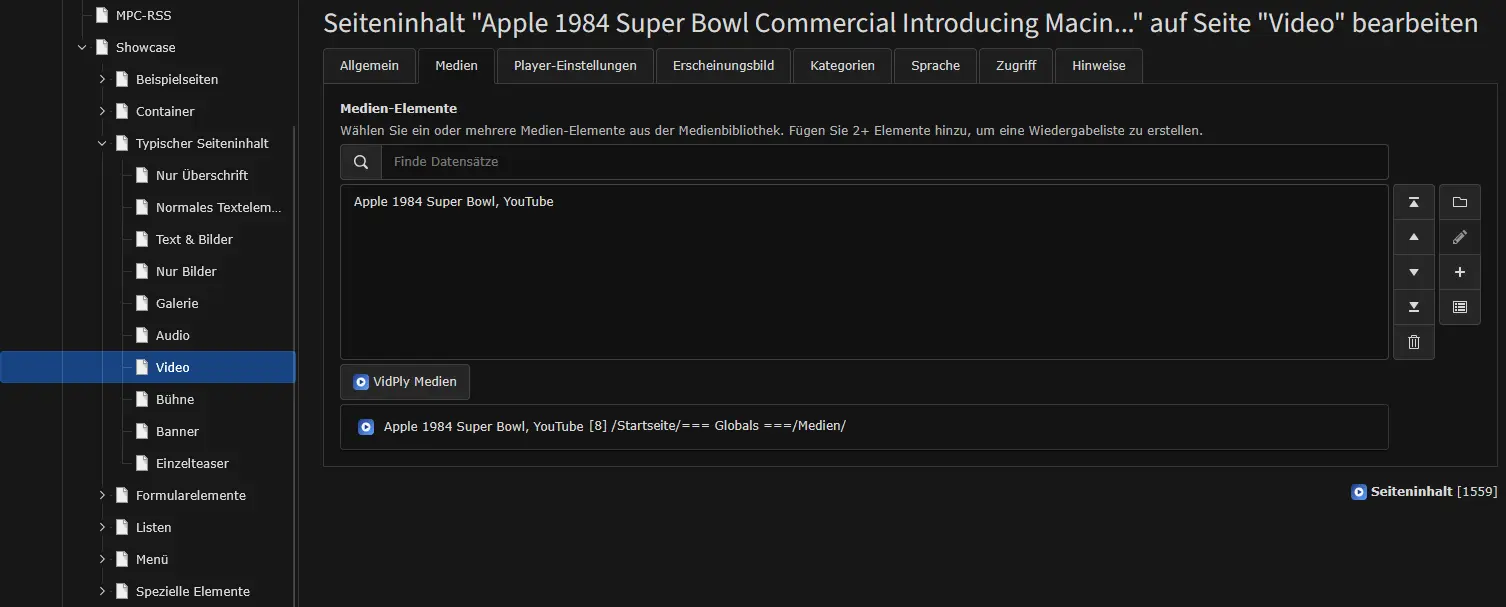
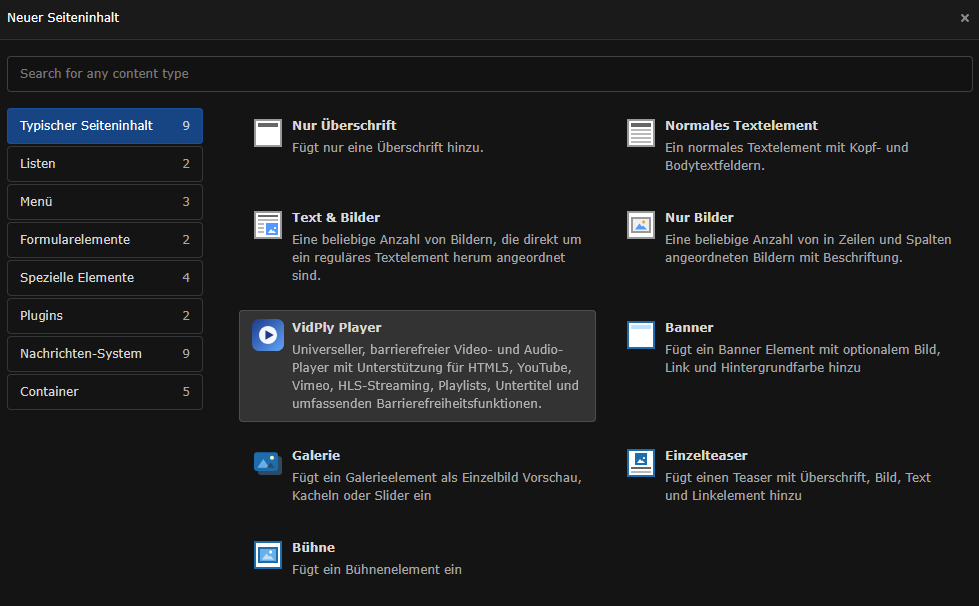
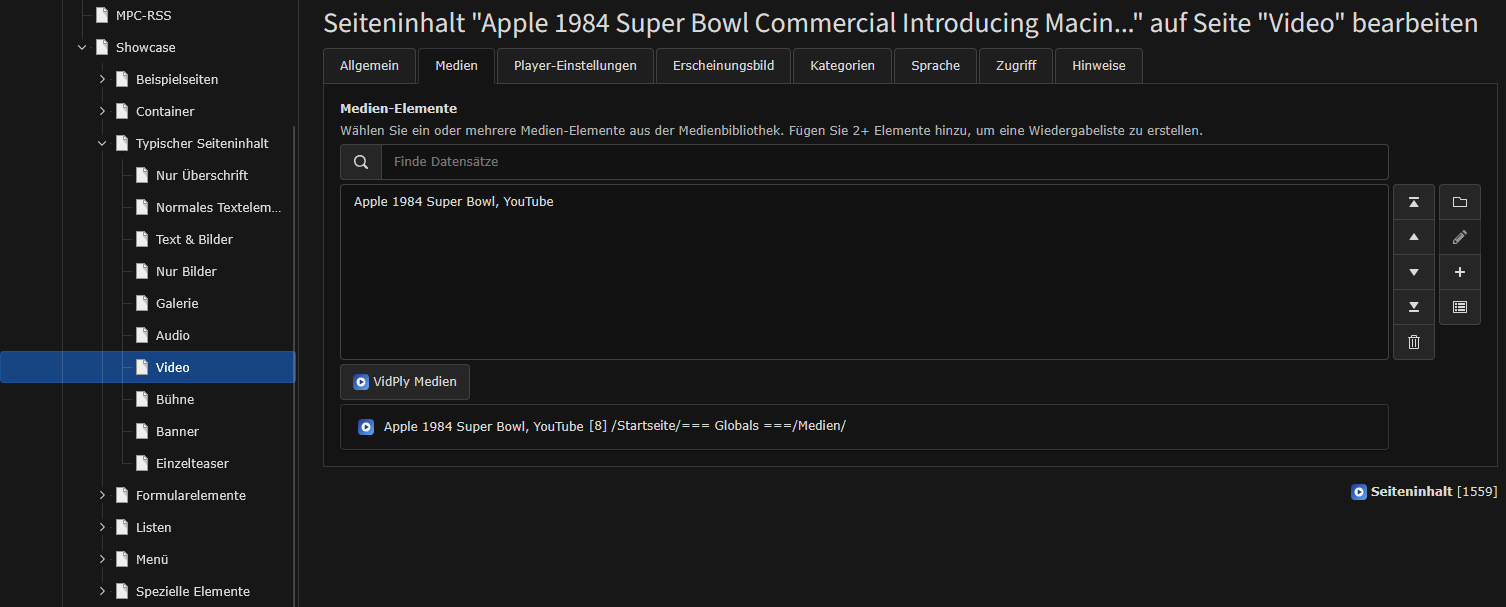
First, create reusable media elements in the VidPly media archive. To do this, create a sys folder anywhere in the TYPO3 page tree, e.g. "Media". Switch to the list view and click on "Create new record". You should then find this entry, as shown in the image, "VidPly Media".


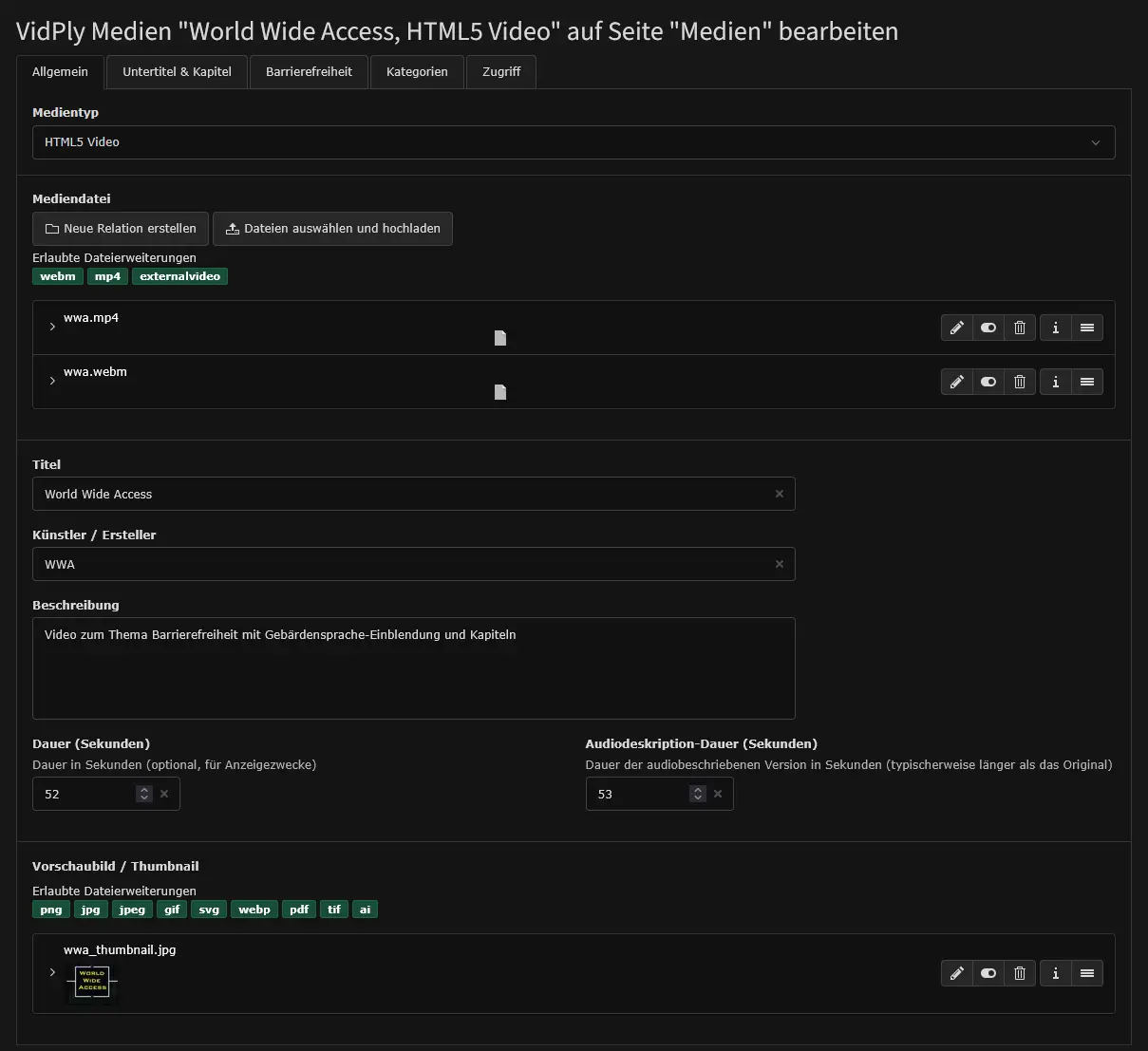
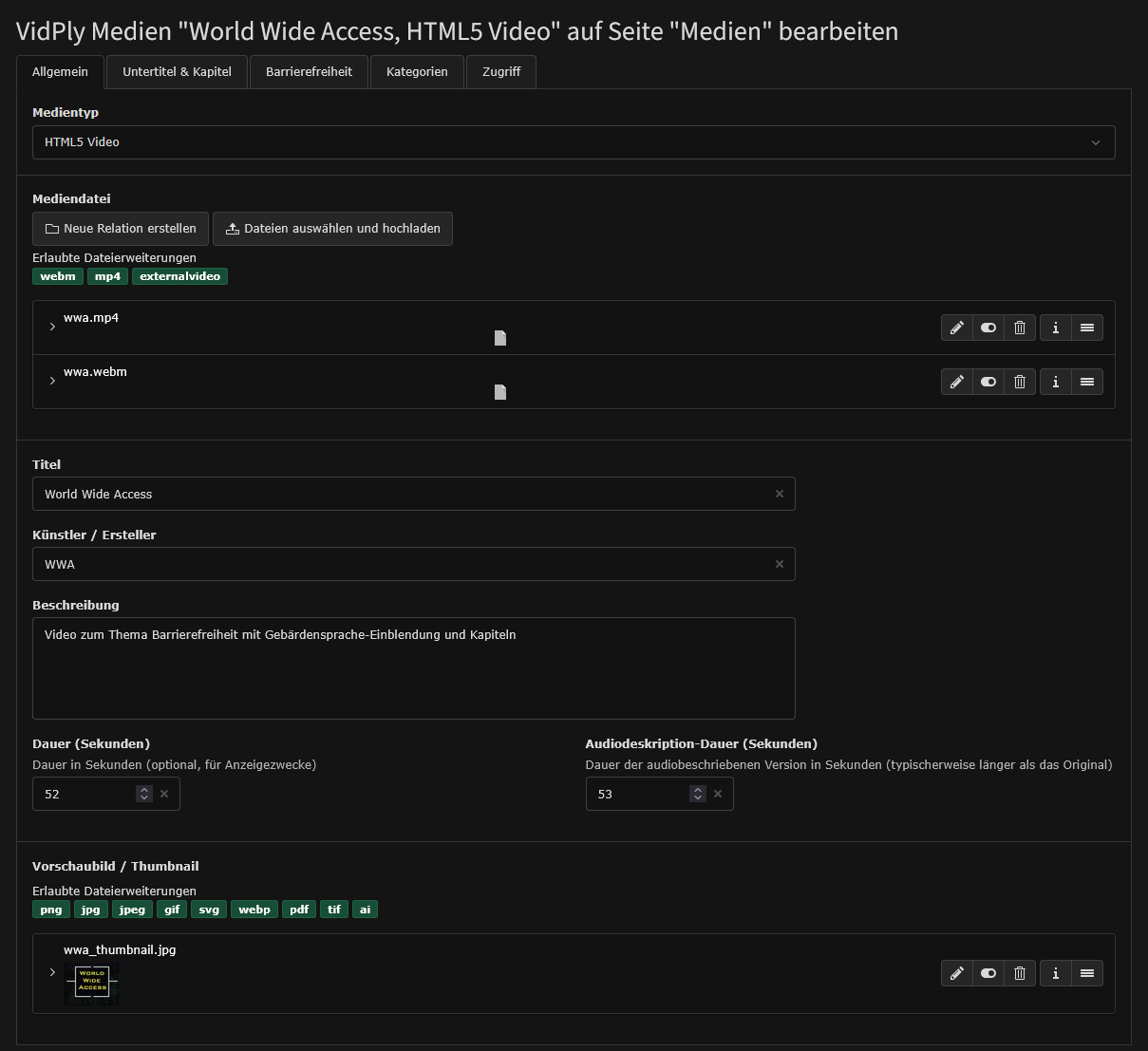
Step 1.2: Fill media element
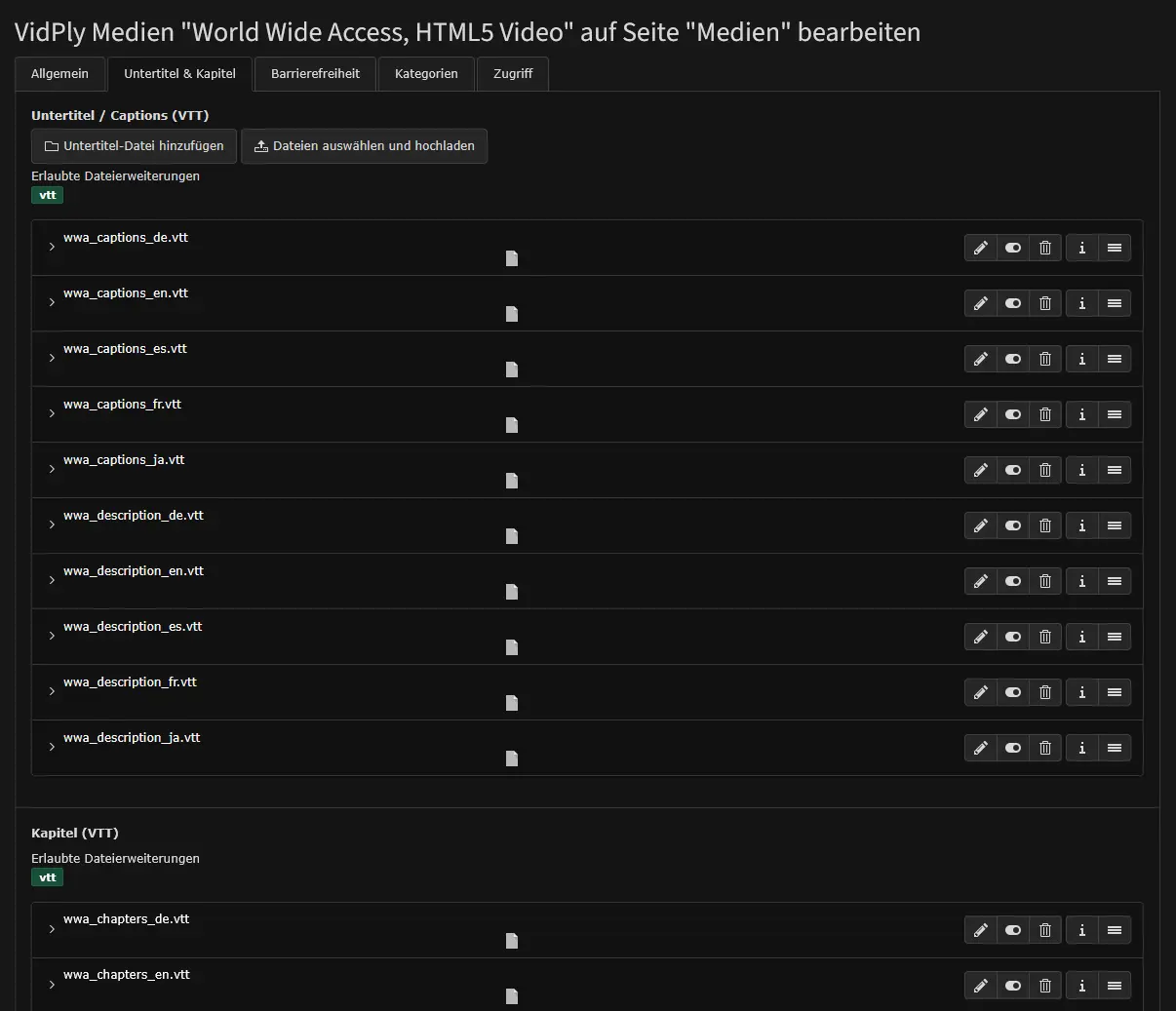
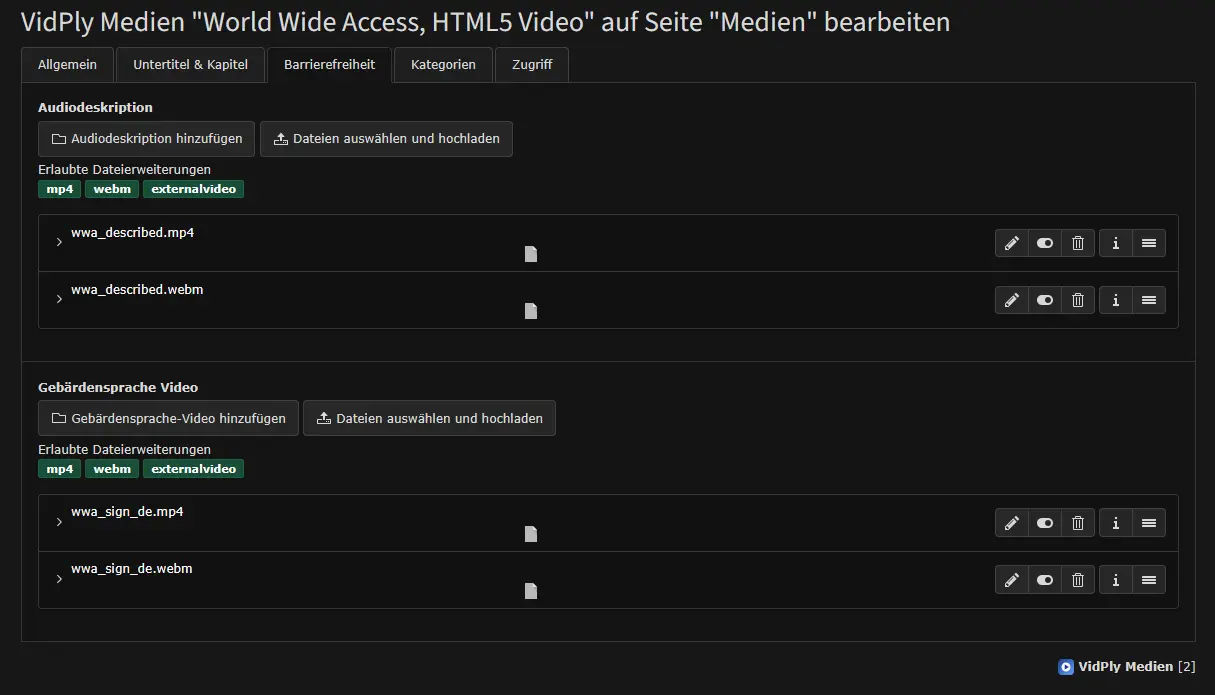
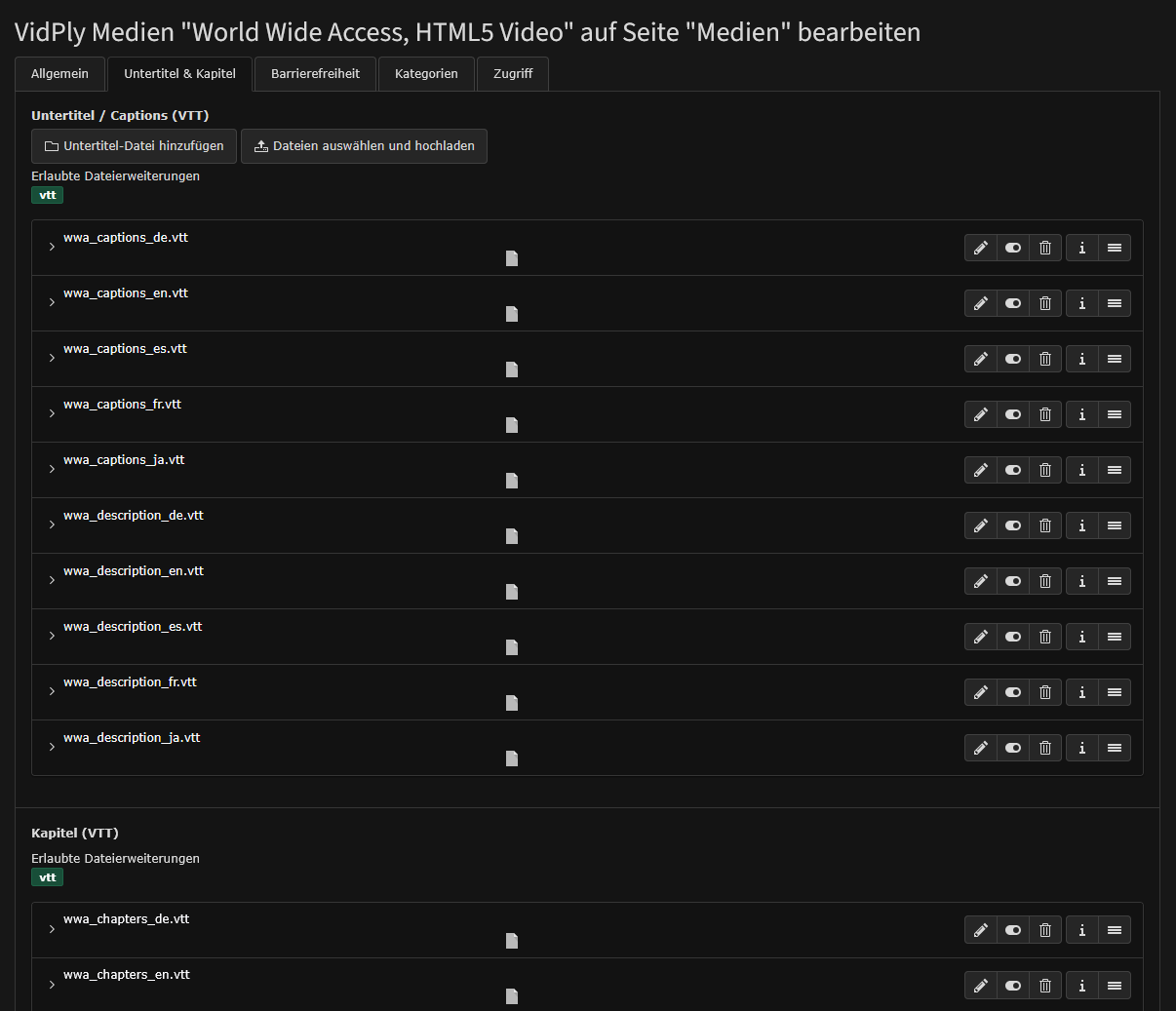
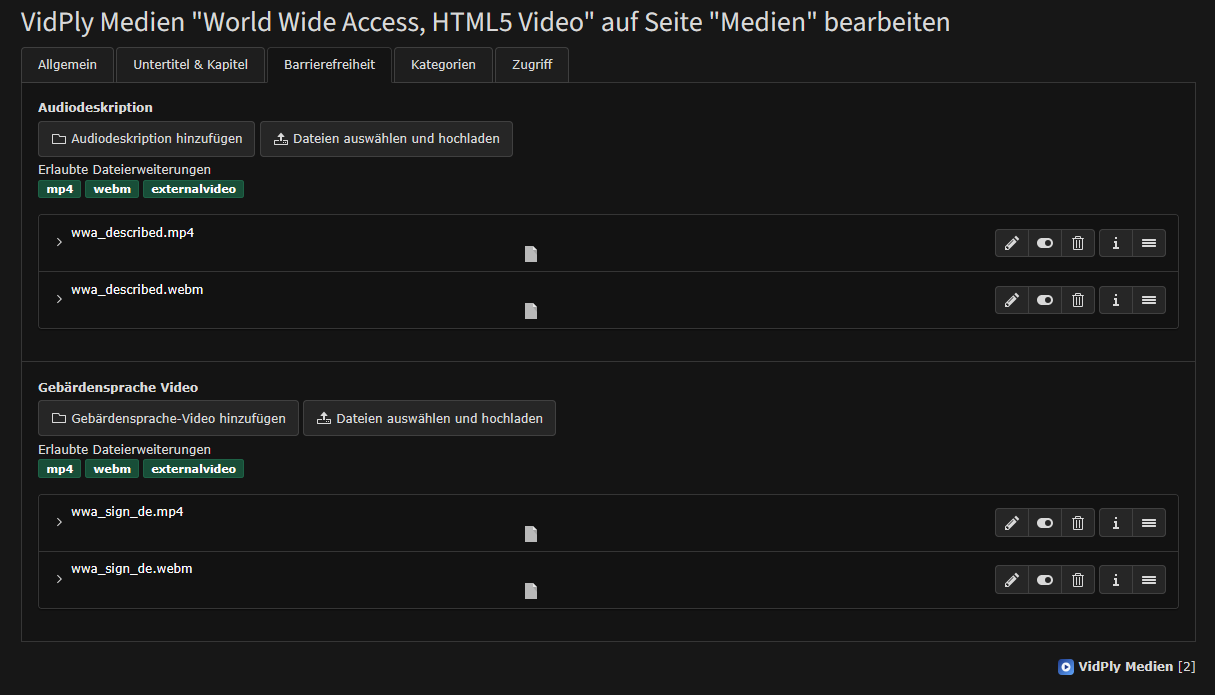
Here you can create your media element. Give it a name, assign a preview image and configure all other settings. You can also add captions, descriptions, a sign language video and an audio description video.